Occasionally, when I put together a new ebook cover for a client, I like to give a little bit of insight as to how it came about what I did to make it, for those of you designing your own covers.
My latest cover is for a short story called Dueling Magics, by Stephanie Burgis, and here it is:
Dueling Magics is a short story set in the time between two of Steph's novels, Kat, Incorrigible and Renegade Magic (published in the U.K. as A Most Improper Magick and A Tangle of Magicks).
The Kat, Incorrigible books are middle-grade magical adventures in Regency Britain, with lots of humour and romance (for the older characters). Kat is a fantastically sparky, headstrong heroine for the series, and it was important to show that in the cover.
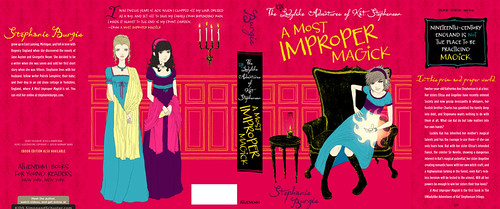
Very luckily (for me), back when Steph's first book was being prepared for publication, the publisher commissioned a beautiful cover by artist Barnaby Ward, but they eventually decided to go with a different style with the cover. This was the original cover:
Barnaby Ward was kind enough to allow Steph to re-use this artwork for her short story.
Now, we could simply have chosen to take the front cover of this and change the title, leaving us with a fantastic cover.
But, the cover was designed primarily for a print book that would be in bookstores, where it could be picked up and examined at full size, with all the texture and weight of a print book. Dueling Magics is an ebook, and with ebooks, the thumbnail is absolute king. I wanted the cover to have more impact at thumbnail size.
The solution was pretty simple: zoom in on Kat. After all, Kat is the absolute centre of the story. The artist has captured her perfectly.
So, that was what I did. I cropped the image right in close. (I also changed the background, although now you don't see so much of it.)
Now that image really pops:
Okay, but it's not done. We need the text.
Ideally, with a cover, you want a fairly blank space to add the title and author. We don't have any completely blank spaces that are large enough here, but that's okay. The focus points of the image are Kat's face and her magic mirror. We need to leave these clear, but otherwise, we've essentially got blank space.
We also need to consider where we want to draw the eye on the cover. Well, the most important bits are going to be (probably in this order): the title, Kat's face, the author's name, the series title, and the magic mirror.
I've designed the text to make this emphasis work.
Now, I've talked before about the need for subtlety in the effects you add to the text on covers. In general, you don't want to go for enormous drop-shadows, outlines, colour gradients, outer glows and so on. Except when you do.
In this case, we're dealing with a middle-grade story. That's for readers who are anywhere between about 9 years old to 12 years old (or a year or two on either side). Subtlety is a lot less important in that group. In fact, it can actually be a disadvantage.
Things need more impact for this age range. Strong colours and big effects are what appeal to them.
But... it should probably go without saying that you need to do these well, or it'll be a disaster.
Here's how I chose to actually use the text in the final image:
As you can see, I've chosen a pretty heavy effect on both the book title and the series title, to make them stand out against their backgrounds and (for the story title) to pop out of the page.
Take a look at some commercial middle grade covers (particularly in the younger middle-grade range) and you'll see the designers following the same principles.
By the way, if you want a copy of Dueling Magics, right now it's free as an ebook in all formats on Smashwords (for now, at least). If you prefer to use Amazon to get your ebooks, the story is available on Amazon.com and Amazon.co.uk (as well as the other Amazon international stores), although it isn't free there (but it is the cheapest possible price; Amazon doesn't usually allow authors to make their stories free on Amazon).
Enjoy the cover, but much more importantly, enjoy the story!
Thursday, 28 February 2013
Cover Case Study: Dueling Magics, by Stephanie Burgis
Labels:
book covers,
cover design,
ebook design,
ebooks
Friday, 8 February 2013
Creating Your Ebook the Right Way: Part 3
This is part 3 in my series of blog posts about how to turn your novel / short story / collection of stories into an ebook suitable to be sold in all the main ebook stores, such as Barnes and Noble, Amazon, Smashwords, Kobo, Apple iStore and the like.
If you missed the first two parts, you can find them here: Part 1 | Part 2.
When we last left off, we had just wiped out all of the formatting from our Word document and copied it into a text editor, such as Notepad. Here's what my document looks like in the text editor:
I'm using a code editor called 'Sublime Text 2' for my text editor, which is more high-powered than you need right here. (I use it because it's what I use for other things, like website development. You will be fine at this stage if you're using Notepad or TextEdit.)
Now that we've got the text in a text editor, we've effectively removed all of the crud that we managed to fill it with when we first wrote our story in Word. But we still need to tidy it up, and then, if we're going to upload a Word document to Smashwords or Amazon, or if we're going to create a PDF version of our ebook, we're going to have to reformat it all.
That means going back to Word again.
Just a glance at the story I'm formatting shows that it's still a bit messy. For instance, there's a space before the © symbol, and a blank line after the copyright line. We don't want those.
At which point, you might be saying, "Huh? Don't want blank lines? Won't that make everything look crap?*" (*You may choose not to swear, of course.)
Well, it would. Except blank lines can make a real mess of ebooks. Smashwords suggest that you don't have more than four paragraph returns (four presses of the 'Enter' key) to create space. I'm going to go further: don't have any at all. We have a far better way of creating the space we need, and we'll come to that later.
Right now, we're going to get rid of all the unnecessary stuff like extra spaces and blank lines, and do some other tidying-up and conversion at the same time.
At this point, I should note that Smashwords has an excellent and thorough guide for formatting documents for Smashwords. If you are going to upload a Word document to Smashwords, you should familiarise yourself thoroughly with it.
But we want to do more here. We want Word versions for Smashwords and Amazon, and we also want epub and mobi versions, so we'll go about things a little differently.
First thing, though, is to get back to Word.
Open a brand-new, blank document in Word.
Copy all the text from your text editor, and paste it into the blank Word document. Now save it.
It should look something like this, depending on how your blank template is set up in Word (mine has double line spacing and indented paragraphs; yours may be different; it doesn't really matter at this stage):
Right now, it probably doesn't look much different from the way it did when you last had it in Word, which might make the process seem a little redundant. But you can be absolutely sure now that there are no lingering, ugly bits of formatting that would mess you up at a later stage.
Some people indent their paragraphs using the 'tab' key. Even if you don't usually, there might still be a few places where you've done that.
The process we've followed so far won't have got rid of your tabs, and we don't want them in our ebooks, so let's get rid of them first.
Open up the 'Replace' function in Word. In the Find box, type exactly this:
^t
The Replace box should be completely empty.
Make sure you don't have any formatting options, like bold or italic, still set in these boxes from earlier in the process. If you do, clear that formatting first.
Click 'Replace All'.
Your tabs should now all be gone.
Next up, we want to get rid of any extra spaces that we've got. These might be at the beginning or end of lines, or you may be in the habit of typing two spaces after a full-stop (period). Maybe you use spaces to indent your paragraphs. Or you might just have stuck some in by mistake or to space things out.
Whichever, we don't want them. Not in ebooks.
Multiple spaces
First, we'll get rid of any multiple spaces.
Again, go to 'Replace' in Word.
Make sure there's nothing at all in either the Find or Replace boxes. No formatting. No typing. Nothing. Put your cursor in each of the boxes in turn and delete anything in there.
Now, go to the Find box and hit the space bar twice.
Then, to go the Replace box and hit the space bar once.
Click on 'Replace All'.
You may well have to do this several times. Keep going until Word finds nothing more to replace. I had to do it three times with the document I'm working with before Word said it found 0 replacements.
Spaces at the end of lines
In general, spaces at the end of lines won't cause you too many problems, because they'll be ignored. But to be really sure, let's get rid of them anyway. It won't take long.
'Replace' is your friend again.
As before, make sure there's absolutely nothing typed in the Find or Replace boxes, and no formatting.
In the Find box, hit the spacebar once, then type the following exactly:
^p
In the Replace box, type the following exactly (without any spaces):
^p
So:
Then click 'Replace All'. The ^p that you typed is the symbol for a paragraph return in Word. We are searching the Word document for any paragraph return that is preceded by a space, and then we are replacing it with just the paragraph return, sans spaces.
Spaces at the beginning of lines
More important are the spaces at the beginning of lines, like the one I've got at the beginning of the copyright statement. These will make a mess of your formatting. The procedure is very similar.
Go to 'Replace'.
Clear out everything that's in there, including spaces.
In the Find box, type ^p and hit the spacebar once.
In the Replace box, type ^p without any spaces.
Click 'Replace All'.
I had a lot of these spaces at the beginning of lines. (Tut-tut!). Now I have none. (Yay!)
This time, we are searching for any paragraph returns that are immediately followed by a space (at the beginning of the new paragraph), and we are replacing them with just the paragraph return. No space.
Remember we don't want blank lines either. So, we're going to get rid of them.
The way we do this is, as usual, with 'Replace'. Open up the Replace function in Word. In the Find box, type exactly this:
^p^p
In the Replace box, type exactly this:
^p
Like so:
Replace All.
Remember, the ^p that you typed is the symbol for a paragraph return. Twice means that there are two paragraph returns, one directly after the other, which means a blank line. We replace the two paragraph returns with a single one.
You need to repeat this process until there are no more results of the Find and Replace. If you've used a lot of paragraph returns at various points, this might take a few goes.
When you're done, have a quick scroll through your document. There shouldn't be any blank lines anywhere.
If there are any, and you've followed all of this, that probably means there's some other formatting in the way. Click on the show / hide formatting symbol in the toolbar on Word. It looks like this:
Scroll through and look at the formatting. Paragraph returns are shown with the above symbol. If you have two together anywhere, just manually delete one.
Hopefully, you won't have to do that. I find that my version of Word makes me do this if there are two paragraph returns right at the end of the document. Who knows why?
Now, you'll recall that we replaced our italics with placeholders, so that we could easily reinsert them. Everything that should be italic starts with <em> and ends with </em> (or whatever other placeholder you chose. We need to reverse that.
But first, we're going to tidy up any poor formatting around the italics.
We want to make sure that the text and only the text (and any spaces in between words) are italicised. For example, we want to make sure that no spaces at the beginning or end of the italicised text are also included. And we want to make sure the paragraph returns aren't within the italics. Doing this will mean that, when we convert to epub later on, there are fewer issues to deal with.
We're going to use Find and Replace again, of course.
First up, in the Find box type the following:
<em> and then hit the spacebar.
In the Replace box, hit the spacebar then type the following:
<em>
Replace All.
Next, in the Find box hit the spacebar then type:
</em>
In the Replace box type:
</em> then hit the spacebar.
Replace All.
Now the line breaks.
In the Find box, type:
^p</em>
In the Replace box, type:
</em>^p
Replace All.
And finally...
In the Find Box, type:
<em>^p
In the Replace Box type:
^p<em>
Replace All.
Phew. That was kind of exhausting.
Now do exactly the same with bold. (Remembering that we used <strong> and </strong> to wrap the bold text.)
We've tidied up the italics, but now we actually have to turn them into italics again. This may appear a little more complex, but it's really quite easy. Just type exactly what I show, and it'll work.
As usual, go to 'Replace' in Word.
In the Find box, type exactly this:
\<em\>*\</em\>
Click on the down arrow (if you haven't already) to show the further options. Click on the 'Use wildcards' checkbox, to make sure it is checked. (Remember, your version of Word may do this differently, but you'll be able to select 'Use wildcards' as an option somehow. Use your 'help' button if necessary.)
In the Replace box, type exactly this:
^&
Still in the Replace box, choose 'Font' from the 'Format' dropdown, and then click on Italic and OK.
Replace All
The appropriate parts of the manuscript should now be italicised. You'll note, though, that we still have the <em> and </em> markers:
Good old Find and Replace will sort that out.
In the Find box, type:
<em>
In the Replace box, clear the formatting (click the 'No formatting' button, or similar) and delete everything that is in the box, so it is blank (not even spaces).
Replace All.
Do the same, but with </em> in the Find box.
Sorted. You now have italics back, without any errors at all in the formatting.
You need to do the same with bold. You can probably figure out how. (Hint: in the Find box, you'll be typing: \<strong\>*\</strong\> ).
There's some more tidying up to do before we style this document, but this has been a long entry, so let's leave if for next time.
If you're getting stuck or confused, feel free to ask questions in the comments!
Part 4 is now available: read part 4 here.
(Note: if you are interested in hiring me for ebook cover design or ebook formatting, you can see samples of my work here: http://www.50secondsnorth.com/ebooks/ and see details (including cost) of my services here: http://www.50secondsnorth.com/ebooks/details-rates.html)
If you missed the first two parts, you can find them here: Part 1 | Part 2.
When we last left off, we had just wiped out all of the formatting from our Word document and copied it into a text editor, such as Notepad. Here's what my document looks like in the text editor:
I'm using a code editor called 'Sublime Text 2' for my text editor, which is more high-powered than you need right here. (I use it because it's what I use for other things, like website development. You will be fine at this stage if you're using Notepad or TextEdit.)
Now that we've got the text in a text editor, we've effectively removed all of the crud that we managed to fill it with when we first wrote our story in Word. But we still need to tidy it up, and then, if we're going to upload a Word document to Smashwords or Amazon, or if we're going to create a PDF version of our ebook, we're going to have to reformat it all.
That means going back to Word again.
Tidying up
Just a glance at the story I'm formatting shows that it's still a bit messy. For instance, there's a space before the © symbol, and a blank line after the copyright line. We don't want those.
At which point, you might be saying, "Huh? Don't want blank lines? Won't that make everything look crap?*" (*You may choose not to swear, of course.)
Well, it would. Except blank lines can make a real mess of ebooks. Smashwords suggest that you don't have more than four paragraph returns (four presses of the 'Enter' key) to create space. I'm going to go further: don't have any at all. We have a far better way of creating the space we need, and we'll come to that later.
Right now, we're going to get rid of all the unnecessary stuff like extra spaces and blank lines, and do some other tidying-up and conversion at the same time.
At this point, I should note that Smashwords has an excellent and thorough guide for formatting documents for Smashwords. If you are going to upload a Word document to Smashwords, you should familiarise yourself thoroughly with it.
But we want to do more here. We want Word versions for Smashwords and Amazon, and we also want epub and mobi versions, so we'll go about things a little differently.
First thing, though, is to get back to Word.
Open a brand-new, blank document in Word.
Copy all the text from your text editor, and paste it into the blank Word document. Now save it.
It should look something like this, depending on how your blank template is set up in Word (mine has double line spacing and indented paragraphs; yours may be different; it doesn't really matter at this stage):
Right now, it probably doesn't look much different from the way it did when you last had it in Word, which might make the process seem a little redundant. But you can be absolutely sure now that there are no lingering, ugly bits of formatting that would mess you up at a later stage.
Tabs
Some people indent their paragraphs using the 'tab' key. Even if you don't usually, there might still be a few places where you've done that.
The process we've followed so far won't have got rid of your tabs, and we don't want them in our ebooks, so let's get rid of them first.
Open up the 'Replace' function in Word. In the Find box, type exactly this:
^t
The Replace box should be completely empty.
Make sure you don't have any formatting options, like bold or italic, still set in these boxes from earlier in the process. If you do, clear that formatting first.
Your Find and Replace should look like this:
Click 'Replace All'.
Your tabs should now all be gone.
Extra spaces
Next up, we want to get rid of any extra spaces that we've got. These might be at the beginning or end of lines, or you may be in the habit of typing two spaces after a full-stop (period). Maybe you use spaces to indent your paragraphs. Or you might just have stuck some in by mistake or to space things out.
Whichever, we don't want them. Not in ebooks.
Multiple spaces
First, we'll get rid of any multiple spaces.
Again, go to 'Replace' in Word.
Make sure there's nothing at all in either the Find or Replace boxes. No formatting. No typing. Nothing. Put your cursor in each of the boxes in turn and delete anything in there.
Now, go to the Find box and hit the space bar twice.
Then, to go the Replace box and hit the space bar once.
Click on 'Replace All'.
You may well have to do this several times. Keep going until Word finds nothing more to replace. I had to do it three times with the document I'm working with before Word said it found 0 replacements.
Spaces at the end of lines
In general, spaces at the end of lines won't cause you too many problems, because they'll be ignored. But to be really sure, let's get rid of them anyway. It won't take long.
'Replace' is your friend again.
As before, make sure there's absolutely nothing typed in the Find or Replace boxes, and no formatting.
In the Find box, hit the spacebar once, then type the following exactly:
^p
In the Replace box, type the following exactly (without any spaces):
^p
So:
Then click 'Replace All'. The ^p that you typed is the symbol for a paragraph return in Word. We are searching the Word document for any paragraph return that is preceded by a space, and then we are replacing it with just the paragraph return, sans spaces.
Spaces at the beginning of lines
More important are the spaces at the beginning of lines, like the one I've got at the beginning of the copyright statement. These will make a mess of your formatting. The procedure is very similar.
Go to 'Replace'.
Clear out everything that's in there, including spaces.
In the Find box, type ^p and hit the spacebar once.
In the Replace box, type ^p without any spaces.
Click 'Replace All'.
I had a lot of these spaces at the beginning of lines. (Tut-tut!). Now I have none. (Yay!)
This time, we are searching for any paragraph returns that are immediately followed by a space (at the beginning of the new paragraph), and we are replacing them with just the paragraph return. No space.
Blank lines
Remember we don't want blank lines either. So, we're going to get rid of them.
The way we do this is, as usual, with 'Replace'. Open up the Replace function in Word. In the Find box, type exactly this:
^p^p
In the Replace box, type exactly this:
^p
Like so:
Replace All.
Remember, the ^p that you typed is the symbol for a paragraph return. Twice means that there are two paragraph returns, one directly after the other, which means a blank line. We replace the two paragraph returns with a single one.
You need to repeat this process until there are no more results of the Find and Replace. If you've used a lot of paragraph returns at various points, this might take a few goes.
When you're done, have a quick scroll through your document. There shouldn't be any blank lines anywhere.
If there are any, and you've followed all of this, that probably means there's some other formatting in the way. Click on the show / hide formatting symbol in the toolbar on Word. It looks like this:
Scroll through and look at the formatting. Paragraph returns are shown with the above symbol. If you have two together anywhere, just manually delete one.
Hopefully, you won't have to do that. I find that my version of Word makes me do this if there are two paragraph returns right at the end of the document. Who knows why?
Sorting out italics
Now, you'll recall that we replaced our italics with placeholders, so that we could easily reinsert them. Everything that should be italic starts with <em> and ends with </em> (or whatever other placeholder you chose. We need to reverse that.
But first, we're going to tidy up any poor formatting around the italics.
We want to make sure that the text and only the text (and any spaces in between words) are italicised. For example, we want to make sure that no spaces at the beginning or end of the italicised text are also included. And we want to make sure the paragraph returns aren't within the italics. Doing this will mean that, when we convert to epub later on, there are fewer issues to deal with.
We're going to use Find and Replace again, of course.
First up, in the Find box type the following:
<em> and then hit the spacebar.
In the Replace box, hit the spacebar then type the following:
<em>
Replace All.
Next, in the Find box hit the spacebar then type:
</em>
In the Replace box type:
</em> then hit the spacebar.
Replace All.
Now the line breaks.
In the Find box, type:
^p</em>
In the Replace box, type:
</em>^p
Replace All.
And finally...
In the Find Box, type:
<em>^p
In the Replace Box type:
^p<em>
Replace All.
Phew. That was kind of exhausting.
Now do exactly the same with bold. (Remembering that we used <strong> and </strong> to wrap the bold text.)
Getting back the italics
We've tidied up the italics, but now we actually have to turn them into italics again. This may appear a little more complex, but it's really quite easy. Just type exactly what I show, and it'll work.
As usual, go to 'Replace' in Word.
In the Find box, type exactly this:
\<em\>*\</em\>
Click on the down arrow (if you haven't already) to show the further options. Click on the 'Use wildcards' checkbox, to make sure it is checked. (Remember, your version of Word may do this differently, but you'll be able to select 'Use wildcards' as an option somehow. Use your 'help' button if necessary.)
In the Replace box, type exactly this:
^&
Still in the Replace box, choose 'Font' from the 'Format' dropdown, and then click on Italic and OK.
Replace All
The appropriate parts of the manuscript should now be italicised. You'll note, though, that we still have the <em> and </em> markers:
Good old Find and Replace will sort that out.
In the Find box, type:
<em>
In the Replace box, clear the formatting (click the 'No formatting' button, or similar) and delete everything that is in the box, so it is blank (not even spaces).
Replace All.
Do the same, but with </em> in the Find box.
Sorted. You now have italics back, without any errors at all in the formatting.
You need to do the same with bold. You can probably figure out how. (Hint: in the Find box, you'll be typing: \<strong\>*\</strong\> ).
There's some more tidying up to do before we style this document, but this has been a long entry, so let's leave if for next time.
If you're getting stuck or confused, feel free to ask questions in the comments!
Part 4 is now available: read part 4 here.
(Note: if you are interested in hiring me for ebook cover design or ebook formatting, you can see samples of my work here: http://www.50secondsnorth.com/ebooks/ and see details (including cost) of my services here: http://www.50secondsnorth.com/ebooks/details-rates.html)
Tuesday, 5 February 2013
Secrets of the Dragon Tomb!
And another one! (See previous post.)
This time for Secrets of the Dragon Tomb itself.
Thanks again to Pulp-O-mizer. (Yes, I could do this all day...)
(Secrets of the Dragon Tomb will be published by Christy Ottaviano Books (Henry Holt / Macmillan) ... in the future.)
Also check out the cover I did for Steph's middle grade fantasy novel, Renegade Magic (Kat, Incorrigible book 2) which is out now in hardcover and in mass market paperback on March 5, 2013.
This time for Secrets of the Dragon Tomb itself.
Thanks again to Pulp-O-mizer. (Yes, I could do this all day...)
(Secrets of the Dragon Tomb will be published by Christy Ottaviano Books (Henry Holt / Macmillan) ... in the future.)
Also check out the cover I did for Steph's middle grade fantasy novel, Renegade Magic (Kat, Incorrigible book 2) which is out now in hardcover and in mass market paperback on March 5, 2013.
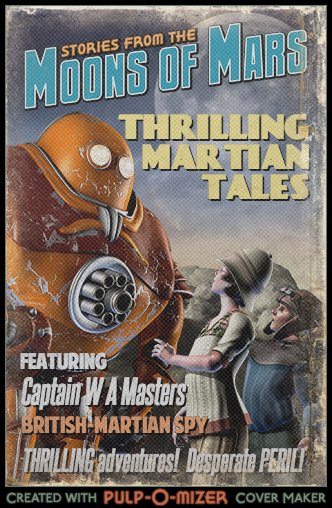
Thrilling Martian Tales!
So, in my upcoming middle grade novel, Secrets of the Dragon Tomb, there are frequent references to a fictional pulp magazine called Thrilling Martian Tales. My protagonist is a bit obsessed with it, and with the British-Martian spy, Captain W A Masters, who stars in it.
When Steph tweeted a link to the incredibly awesome pulp-o-mizer, I thought it was a fantastic chance to mock up a cover for the magazine.
Sadly, you can only order the magazine on Mars in 1816. Get out your clockwork time machines and go buy it!
Thursday, 31 January 2013
Creating Your Ebook the Right Way: Part 2
In the previous part of this series, we collected together all of the material we are going to use in our ebook and figured out all of the different types of formatting we were going to need.
Now, we're going to utterly destroy it.
The thing is, Microsoft Word (and other similar word-processing programmes) fill your document with vast amounts of crud. You probably aren't noticing, because it's hidden from plain view, but it's there, and if you don't get rid of it, your ebook is going to be a mess.
So, we're going to get rid of it. Violently and permanently. And we're going to get rid of all of our formatting at the same time.
Then we're going to put the formatting back in properly.
Unfortunately, we're going to end up repeating our actions a few times in this process. That's because we're going to be producing both a Word document that can be used for Smashwords (and Amazon, and a PDF) as well as the mobi and epub versions. If you've decided only to create the mobi and epub versions, some of this will be redundant. It should be fairly easy to figure out which bits those are.
Okay, if you're a Microsoft Word genius, you might already have done all the formatting perfectly. If so, good for you. Otherwise, for those of us who are fallible mortals, let's go...
Actually, wait! Let's not go just yet.
See, if you're like me, your manuscript is full of italics. We writers do love our italics. And we've probably got a few bolds as well. When we fireball the formatting, we're going to lose all of those. And who wants to go through the whole manuscript putting every single italic back in?
So, let's be smart about this.
We might have to lose our italics and bolds, but we can put in placeholders to show where they should be, and then automatically reinsert the italics and bolds afterwards.
The problem with this is that we are going to end up putting those placeholders around our headings too. And we don't want to do that. We're going to format our headings in a different way.
So, before we even put in our placeholders, we're going to clear all the formatting of the headings. Luckily, Word makes it easy for us to do this.
Click anywhere on a heading. Then use the dropdown menu shown and select 'Clear Formatting'.
Note: I'm using Word 2004 (on a Mac), because this is my preferred version. I think it's easier than more recent versions. Different versions of Word may have the functionality we're using in different places. However all the things I'm going to do should be possible on any recent version of Word. You may have to go digging around menus or the help section to find them, though.
Once you've selected 'Clear Formatting', your heading should now be formatted in exactly the same way as standard text ('Normal'). Do the same for all other headings in the document. (Make sure you do it for all the headings in the supplemental material, as well as the story.)
Done that?
Awesome.
Now let's go through and deal with those italics and bolds.
First up, the italics.
In your version of Word, go to "Replace...". On my ancient version, that's in the 'Edit' menu. You can also get to it on a Mac by this shortcut: Shift + Command + H (I assume on a PC you would use Shift + Ctrl + H, but I haven't used a PC for a few years now).
In the 'Find' box you need to select 'Italic' for format. On my version, you click on the down arrow, then select Format.
Then choose Font from the 'Format' dropdown menu, click on 'Italic' and 'OK'. Your version of Word, again, may vary in exact details.
This gives you:
In the 'Replace' box you need to select 'Not Italic' for the Format (same process as above) and type in the following: <em>^&</em>
Then click 'Replace All'.
What you've told Word to do is find everything that is in italic, take that content (denoted by ^&), wrap it between <em> and </em>, and then remove the italic formatting. (The <em> and </em> are the HTML way of denoting italic; you can choose whatever you like, as long as it's not something that actually occurs in the text).
For example, if your original document had the following:
This is in italics.
It should now look like:
<em>This is in italics.</em>
In the document now.
You have removed all the italics from your text, but you know exactly where they will go for later use.
Fantastic. Now you are going to do exactly the same with bold.
In this case, select Format: Bold in the Find Box and Format: Not Bold in the Replace box. (You may have to clear the previous italic and not italic formatting in these boxes. You should have a 'No Formatting' button in Find and Replace that does this.) In the Replace box type exactly this: <strong>^&</strong>
(Again, <strong> is the way you represent bold in HTML. More on HTML later; it's not that hard, and I'll explain these tags we've used.)
Now we're ready to clear the formatting from the whole document.
Select all the text in the document (Command + A on a Mac; Ctrl + A on a PC) and choose 'Clear Formatting' from the dropdown menu, just as you did for the headings.
Everything should now be in basic text formatting.
That should be enough, right?
Well, not quite. There could still be crud lurking around.
Select everything again. This time, copy it.
We're going to paste everything into a plain text editor.
Plain text editors include:
And so on. Don't use any text editor with formatting facilities. For example, WordPad would be completely unsuitable.
Notepad is ideal for this, but we will be using either TextMate or Sublime Text later on in this series, so you may want to consider getting one of those at some point.
So, paste everything you copied from Word into a new document in one of those text editors and save it as a .txt file (e.g., 'my-book.txt').
Right. That's enough for today. Next time, we'll put the text back into Word and do some cleaning up of this text so that we can get it properly formatted for Smashwords or Amazon upload.
See you then!
Part 3 is now available: read part 3 here.
(Note: if you are interested in hiring me for ebook cover design or ebook formatting, you can see samples of my work here: http://www.50secondsnorth.com/ebooks/ and see details (including cost) of my services here: http://www.50secondsnorth.com/ebooks/details-rates.html)
Now, we're going to utterly destroy it.
The Patented, Double-Nuke Destruction
The thing is, Microsoft Word (and other similar word-processing programmes) fill your document with vast amounts of crud. You probably aren't noticing, because it's hidden from plain view, but it's there, and if you don't get rid of it, your ebook is going to be a mess.
So, we're going to get rid of it. Violently and permanently. And we're going to get rid of all of our formatting at the same time.
Then we're going to put the formatting back in properly.
Unfortunately, we're going to end up repeating our actions a few times in this process. That's because we're going to be producing both a Word document that can be used for Smashwords (and Amazon, and a PDF) as well as the mobi and epub versions. If you've decided only to create the mobi and epub versions, some of this will be redundant. It should be fairly easy to figure out which bits those are.
Okay, if you're a Microsoft Word genius, you might already have done all the formatting perfectly. If so, good for you. Otherwise, for those of us who are fallible mortals, let's go...
Actually, wait! Let's not go just yet.
See, if you're like me, your manuscript is full of italics. We writers do love our italics. And we've probably got a few bolds as well. When we fireball the formatting, we're going to lose all of those. And who wants to go through the whole manuscript putting every single italic back in?
So, let's be smart about this.
Being Smart About This
We might have to lose our italics and bolds, but we can put in placeholders to show where they should be, and then automatically reinsert the italics and bolds afterwards.
The problem with this is that we are going to end up putting those placeholders around our headings too. And we don't want to do that. We're going to format our headings in a different way.
So, before we even put in our placeholders, we're going to clear all the formatting of the headings. Luckily, Word makes it easy for us to do this.
Click anywhere on a heading. Then use the dropdown menu shown and select 'Clear Formatting'.
Note: I'm using Word 2004 (on a Mac), because this is my preferred version. I think it's easier than more recent versions. Different versions of Word may have the functionality we're using in different places. However all the things I'm going to do should be possible on any recent version of Word. You may have to go digging around menus or the help section to find them, though.
Once you've selected 'Clear Formatting', your heading should now be formatted in exactly the same way as standard text ('Normal'). Do the same for all other headings in the document. (Make sure you do it for all the headings in the supplemental material, as well as the story.)
Done that?
Awesome.
Now let's go through and deal with those italics and bolds.
First up, the italics.
In your version of Word, go to "Replace...". On my ancient version, that's in the 'Edit' menu. You can also get to it on a Mac by this shortcut: Shift + Command + H (I assume on a PC you would use Shift + Ctrl + H, but I haven't used a PC for a few years now).
In the 'Find' box you need to select 'Italic' for format. On my version, you click on the down arrow, then select Format.
Then choose Font from the 'Format' dropdown menu, click on 'Italic' and 'OK'. Your version of Word, again, may vary in exact details.
This gives you:
In the 'Replace' box you need to select 'Not Italic' for the Format (same process as above) and type in the following: <em>^&</em>
Then click 'Replace All'.
What you've told Word to do is find everything that is in italic, take that content (denoted by ^&), wrap it between <em> and </em>, and then remove the italic formatting. (The <em> and </em> are the HTML way of denoting italic; you can choose whatever you like, as long as it's not something that actually occurs in the text).
For example, if your original document had the following:
This is in italics.
It should now look like:
<em>This is in italics.</em>
In the document now.
You have removed all the italics from your text, but you know exactly where they will go for later use.
Fantastic. Now you are going to do exactly the same with bold.
In this case, select Format: Bold in the Find Box and Format: Not Bold in the Replace box. (You may have to clear the previous italic and not italic formatting in these boxes. You should have a 'No Formatting' button in Find and Replace that does this.) In the Replace box type exactly this: <strong>^&</strong>
(Again, <strong> is the way you represent bold in HTML. More on HTML later; it's not that hard, and I'll explain these tags we've used.)
Now we're ready to clear the formatting from the whole document.
Nuke Number 1
Select all the text in the document (Command + A on a Mac; Ctrl + A on a PC) and choose 'Clear Formatting' from the dropdown menu, just as you did for the headings.
Everything should now be in basic text formatting.
That should be enough, right?
Well, not quite. There could still be crud lurking around.
Nuke Number 2
Select everything again. This time, copy it.
We're going to paste everything into a plain text editor.
Plain text editors include:
- Notepad (On your PC already ... hopefully)
- TextEdit (On your Mac already ... hopefully)
- TextWrangler (Free; Mac only)
- TextMate (Free trial period; Mac only)
- Sublime Text (Free trial period; PC, Mac or Linux)
- Any other basic HTML editor
And so on. Don't use any text editor with formatting facilities. For example, WordPad would be completely unsuitable.
Notepad is ideal for this, but we will be using either TextMate or Sublime Text later on in this series, so you may want to consider getting one of those at some point.
So, paste everything you copied from Word into a new document in one of those text editors and save it as a .txt file (e.g., 'my-book.txt').
Right. That's enough for today. Next time, we'll put the text back into Word and do some cleaning up of this text so that we can get it properly formatted for Smashwords or Amazon upload.
See you then!
Part 3 is now available: read part 3 here.
(Note: if you are interested in hiring me for ebook cover design or ebook formatting, you can see samples of my work here: http://www.50secondsnorth.com/ebooks/ and see details (including cost) of my services here: http://www.50secondsnorth.com/ebooks/details-rates.html)
Friday, 25 January 2013
Creating Your Ebook the Right Way: Part 1
Turning your manuscript into a well-formatted ebook that works on most e-readers can be an enormous challenge for writers. Information on how to do it is sparse, and some ebook vendors seem determined to keep details of what works and doesn't work on their devices a state secret.
This blog series is going to tell everything you know to turn your novel or short story manuscript into formats that work for most e-reader devices.
We'll start by creating a properly formatted Word document, then convert it to the epub format (suitable for most e-readers), and finally convert it again into mobi format for Kindle.
There are a large number of ebook stores that you might want to distribute your ebook through, including your own website, but the main stores you are going to be interested in are Amazon and Smashwords (which can distribute your ebook to most other stores).
Smashwords allows you to upload either a Word or .epub version of your book. We'll discuss the pros and cons of these approaches later in this series of blog posts, and I'll show you how to create both formats here.
I'm going to assume that you are working in Microsoft Word. You don't have to. Other word processors have similar capabilities, but the examples and processes I show will be in Word.
Note that this guide is only for converting a novel / short story / story collection manuscript. If your book has a complex layout (e.g., it's a technical book), you really need to employ a professional.
First things first. You're going to have more in your ebook than just the story. Here are some things you might want to include:
You should put as much of the supplementary material at the end as possible. In general, the only things that should come before the actual story are the title page (possibly with a copyright statement) and a dedication (if you're using one). Everything else should go after the story.
This is because potential ebook buyers can download a sample from your ebook. On Amazon, this is the first 10% of the ebook. This is your chance to persuade readers to buy your book. Are they going to really do this if the sample is pages and pages of guff?
Last year, I downloaded a sample of a book I was thinking about buying. The 10% consisted of several title pages, many pages of copyright and other similar stuff, and an introduction. Then the sample ended, before any of the actual book showed up. Needless to say, I didn't buy it.
A further word of caution on the supplemental material here: be careful of how much you include, even if it is after the story. A reader who buys an ebook is going to feel cheated if a third of the content is extras. They are paying for the story, not for your adverts.
If you distribute your ebook through Smashwords, you will need to include a different and very specific copyright statement. We'll come to that later, but for now go with whatever copyright statement you feel most happy with.
Before you launch into formatting your ebook, you need to take stock of your manuscript. Go through it and make a list of every different kind of formatting you've got. To illustrate this series, I'm going to use as an example a short story of mine, Love Stories from the Jungle, which I'll convert into an ebook as I go along.
Here are a couple of screenshots of the manuscript:
And:
Even though I haven't gone through and properly formatted the story yet, I can still get a pretty good idea of the types of formatting I'm going to need:
This blog series is going to tell everything you know to turn your novel or short story manuscript into formats that work for most e-reader devices.
We'll start by creating a properly formatted Word document, then convert it to the epub format (suitable for most e-readers), and finally convert it again into mobi format for Kindle.
There are a large number of ebook stores that you might want to distribute your ebook through, including your own website, but the main stores you are going to be interested in are Amazon and Smashwords (which can distribute your ebook to most other stores).
Smashwords allows you to upload either a Word or .epub version of your book. We'll discuss the pros and cons of these approaches later in this series of blog posts, and I'll show you how to create both formats here.
I'm going to assume that you are working in Microsoft Word. You don't have to. Other word processors have similar capabilities, but the examples and processes I show will be in Word.
Note that this guide is only for converting a novel / short story / story collection manuscript. If your book has a complex layout (e.g., it's a technical book), you really need to employ a professional.
Assemble Everything
First things first. You're going to have more in your ebook than just the story. Here are some things you might want to include:
- Title Page
- Dedication
- Story (!)
- Info about other stories / books you have available
- Biography
- Acknowledgements
- Copyright Page
- And so on
You should put as much of the supplementary material at the end as possible. In general, the only things that should come before the actual story are the title page (possibly with a copyright statement) and a dedication (if you're using one). Everything else should go after the story.
This is because potential ebook buyers can download a sample from your ebook. On Amazon, this is the first 10% of the ebook. This is your chance to persuade readers to buy your book. Are they going to really do this if the sample is pages and pages of guff?
Last year, I downloaded a sample of a book I was thinking about buying. The 10% consisted of several title pages, many pages of copyright and other similar stuff, and an introduction. Then the sample ended, before any of the actual book showed up. Needless to say, I didn't buy it.
A further word of caution on the supplemental material here: be careful of how much you include, even if it is after the story. A reader who buys an ebook is going to feel cheated if a third of the content is extras. They are paying for the story, not for your adverts.
If you distribute your ebook through Smashwords, you will need to include a different and very specific copyright statement. We'll come to that later, but for now go with whatever copyright statement you feel most happy with.
Take Stock
Before you launch into formatting your ebook, you need to take stock of your manuscript. Go through it and make a list of every different kind of formatting you've got. To illustrate this series, I'm going to use as an example a short story of mine, Love Stories from the Jungle, which I'll convert into an ebook as I go along.
Here are a couple of screenshots of the manuscript:
![]() |
| This is the opening of the story. |
And:
![]() |
| This is some of the supplemental material. |
Even though I haven't gone through and properly formatted the story yet, I can still get a pretty good idea of the types of formatting I'm going to need:
- Main heading
- Sub heading
- Chapter / section heading
- Normal text (most of the actual story)
- First paragraph text - for the first paragraph in a section or chapter. (If you look at professionally-produced fiction books, you'll see that the first paragraph in every chapter, or section of a chapter, is not indented, unlike the other paragraphs. We will need to do this too.)
- Bold text
- Italic text
- Centered text and images
- I also have certain lines (paragraphs) that are indented further than normal (not shown on the screenshots), so I'll have to handle those too.
Sometimes I will also want extra white space beneath or above an element, for visual reasons. For example, each of the sections in this story has a title, and so I'm going to want the ability to insert blank space between the end of a section and the title of the next section. I could do that with blank lines, but that's not really a great idea, and I'll show you a much better way of achieving the same thing.
These formats should cover everything I need for the story. You'll note that I don't have any different fonts in the story. I strongly recommend that you don't either. If you do have different fonts in your manuscript, consider whether you can produce the same effect with just italics and bold.
It is very difficult to reliably set fonts across different e-reading devices, and furthermore, even if you can do it, it's a bad idea.
The principal principle...
One important principle we're going to be sticking to all the way through this process is that we're not going to over-ride our readers' settings on their e-reading devices. We can (with low reliability, as it happens) change the font, font-size, line-spacing and so on of the text in our ebook.
But if we do, we'll be irritating our readers.
Most people have their e-readers set up how they like them. They can choose their font, their font size, the line spacing, whether the text is justified (lined up on the right hand side as well as on the left), and sometimes other settings, depending on the device. Me, I like a fairly small font size and small line-spacing, and on my Kindle, I have the font set to Caecilia condensed, and I have the minimum possible margins.
Now suppose you come along with your ebook all set up with a completely different font, size, line-spacing and so on, and I can't read it. Not easily. It hurts my eyes. I fiddle around, but because of your typesetting and layout, I still can't get it exactly the way I want it.
I might give up on the book (I did with one recently where I couldn't get it easy to read) and ask for a refund from Amazon. You've lost the sale.
There's no need to alter the base settings on your ebook. The people who designed the Nook and the Kindle and all the rest have done a fantastic job. They probably know far more about how to make e-readers readable than you or I do.
Don't get in the way. Leave most of the typesetting and layout to the device and the reader.
Back to the ebook we're creating.
You should now have a list of all the different types of formatting you'll need in your ebook. Next time, we'll start actually formatting this thing properly.
See you then!
Part 2 is now available: read part 2 here.
(Note: if you are interested in hiring me for ebook cover design or ebook formatting, you can see samples of my work here: http://www.50secondsnorth.com/ebooks/ and see details (including cost) of my services here: http://www.50secondsnorth.com/ebooks/details-rates.html)
Now suppose you come along with your ebook all set up with a completely different font, size, line-spacing and so on, and I can't read it. Not easily. It hurts my eyes. I fiddle around, but because of your typesetting and layout, I still can't get it exactly the way I want it.
I might give up on the book (I did with one recently where I couldn't get it easy to read) and ask for a refund from Amazon. You've lost the sale.
There's no need to alter the base settings on your ebook. The people who designed the Nook and the Kindle and all the rest have done a fantastic job. They probably know far more about how to make e-readers readable than you or I do.
Don't get in the way. Leave most of the typesetting and layout to the device and the reader.
So, on with the show
Back to the ebook we're creating.
You should now have a list of all the different types of formatting you'll need in your ebook. Next time, we'll start actually formatting this thing properly.
See you then!
Part 2 is now available: read part 2 here.
(Note: if you are interested in hiring me for ebook cover design or ebook formatting, you can see samples of my work here: http://www.50secondsnorth.com/ebooks/ and see details (including cost) of my services here: http://www.50secondsnorth.com/ebooks/details-rates.html)
Tuesday, 22 January 2013
Bone Roads on Smashwords
Just a quick note that my fantasy short story collection, Bone Roads, is now available on Smashwords.
The collection consists of nine short stories, eight of which were previously published in places like Realms of Fantasy, Strange Horizons and Black Static.
You can still buy the .mobi version of this collection via the various Amazon stores, but you can now also get an .epub version at Smashwords. It should filter out to other online stores over the next few weeks. Here are the links to where you can buy it:
Smashwords
Amazon UK
Amazon USA
Here are a few reviews of stories in the collection:
"Marvelous."
- Colin Harvey, Suite101, on 'At the Gates'
"This one kept me turning the page without pause, with its natural pace and flow of words, good characterization, and skillful plot build-up. Samphire's writing skill is matched only by his knowledge of Ancient Egyptian culture and mythology."
- Scott M. Sandridge, Tangent Online, on 'The Land of Reeds'.
"A great coming-of-age story."
David Roy, epinions, on 'When the Dragon Falls".
Enjoy!
The collection consists of nine short stories, eight of which were previously published in places like Realms of Fantasy, Strange Horizons and Black Static.
You can still buy the .mobi version of this collection via the various Amazon stores, but you can now also get an .epub version at Smashwords. It should filter out to other online stores over the next few weeks. Here are the links to where you can buy it:
Smashwords
Amazon UK
Amazon USA
Here are a few reviews of stories in the collection:
"Marvelous."
- Colin Harvey, Suite101, on 'At the Gates'
"This one kept me turning the page without pause, with its natural pace and flow of words, good characterization, and skillful plot build-up. Samphire's writing skill is matched only by his knowledge of Ancient Egyptian culture and mythology."
- Scott M. Sandridge, Tangent Online, on 'The Land of Reeds'.
"A great coming-of-age story."
David Roy, epinions, on 'When the Dragon Falls".
Enjoy!
Tuesday, 8 January 2013
The Christmas Haul
So, yeah, I haven't posted my haul of Christmas books, which I figure are going to be pretty much all of my reading for the next few months. Here we go:
Blood and Bone - Ian C. Esslemont
Whispers Under Ground - Ben Aaronovitch
London Falling - Paul Cornell
The Hydrogen Sonata - Iain M. Banks
Stonemouth - Iain Banks
The Mark of Athena - Rick Riordan
The White Mountains - John Christopher
Zom-B - Darren Shan
Full Dark, No Stars - Stephen King
The Wind through the Keyhole - Stephen King
The Children of the Sky - Vernor Vinge
Also, these books on Kindle:
The Etymologicon: A Circular Stroll Through Hidden Connections of the English Language - Mark Forsyth
Storm Front - Jim Butcher
Earthfall - Mark Walden
Great North Road - Peter Hamilton
There are also a couple of books that Steph got that I'm particularly interested in reading:
Geeks, Girls and Secret Identities - Mike Jung
The Friday Society - Adrienne Kress
So, how about you. What are you planning to read next?
Blood and Bone - Ian C. Esslemont
Whispers Under Ground - Ben Aaronovitch
London Falling - Paul Cornell
The Hydrogen Sonata - Iain M. Banks
Stonemouth - Iain Banks
The Mark of Athena - Rick Riordan
The White Mountains - John Christopher
Zom-B - Darren Shan
Full Dark, No Stars - Stephen King
The Wind through the Keyhole - Stephen King
The Children of the Sky - Vernor Vinge
Also, these books on Kindle:
The Etymologicon: A Circular Stroll Through Hidden Connections of the English Language - Mark Forsyth
Storm Front - Jim Butcher
Earthfall - Mark Walden
Great North Road - Peter Hamilton
There are also a couple of books that Steph got that I'm particularly interested in reading:
Geeks, Girls and Secret Identities - Mike Jung
The Friday Society - Adrienne Kress
So, how about you. What are you planning to read next?
Friday, 28 December 2012
The Next Big Thing
My friend and former Clarion West classmate Ibi Zoboi tagged me for The Next Big Thing thingy that's been going around. Hey, why not? I figured. Then, of course, I'm faced with the questions, and my brain goes numb.
I have to tell you that I may have the worst memory in the world. Ask me what I did last week, and I'll just stare blankly at you. On the other hand, Steph complains jealously when we re-watch TV shows or movies together that she always knows what's coming up and it's always a surprise to me.
Anyway, let's give this a go and see if I can dredge up anything...
1. What is the working title of your next book?
Okay, so I can do this one. The working title is Secrets of the Dragon Tomb. Yeah, I realise that titles often change before publication, and the title is the publisher's choice, and publishers are often way better at coming up with good titles than authors are, but I really do like this, so here's hoping it actually stays.
2. Where did the idea come from for the book?
Oh. Good. A memory question...
I don't actually know where the original idea came from. I suspect I have notebooks somewhere in the piles of junk -- er, valuable, important documents -- that lie around our house with my original ideas in, but what I do recall is that Steph and I were watching Pride and Prejudice (the one with Colin Firth) and somehow that combined with the kind of adventures I really wanted to write (part Indiana Jones, part Doctor Who) and this idea for a computer that worked using water and pipes and valves instead of electricity and wires and capacitors and diodes and the like that I came up with when I was a Physics PhD student. (Although my friend, John, who was doing an electronics PhD at the same time will no doubt tell you that I was never much good at electronics and so probably have no idea how computers actually work).
Out of all that came Secrets of the Dragon Tomb.
That doesn't really answer the question.
3. What genre does your book fall under?
Let's say middle grade. (That's the fantastic thing about middle grade -- you don't have to pin books down into little boxes (huzzah for mixed metaphors...). Middle grade is much more free.)
If I had to get out my pins, I'd say adventure-science-fiction-fantasy-steampunk-humor. Er. Is that a genre? It is now. Come join me in my corner...
4. What actors would you choose to play the part of your characters in a movie rendition?
I love casting my stories. I really do. I can procrastinate for hours this way. But here's the problem with books that have mainly children as lead characters: you cast them in your mind when you're writing them (everyone does that, right?), but by the time you've finished, they're all too old. Bah.
So, I don't know who I'd cast in the roles of the children, but I can cast a few people. I'm going to choose Richard Armitage as my main villain, Sir Titus Dane (although I want him more as Guy of Gisborne in the BBC Robin Hood series rather than the grumpy dwarf in The Hobbit). Oh, and while we're at it, I'll have Martin Freeman as Dr. Octavius Blood, and Lucy Griffiths as my hero's older sister, Olivia.
5. What is the one sentence synopsis of your book?
Seriously? One sentence?
Mars in 1816 is a world of high Society, thrilling adventure, and strange clockwork machines; when the villainous archaeologist, Sir Titus Dane, kidnaps Edward Sullivan's parents as part of as part of a scheme to loot an undiscovered dragon tomb, Edward and his sisters must pursue across the Martian wilderness, evading Sir Titus's minions, fighting desperate battles with mechanical nasties, and escaping deadly Martian hunting machines on the way.
All right, that was a total cheat, but what else can you do?
6. Will your book be self-published or represented by an agency?
My agent is the wonderful Jennifer Laughran of Andrea Brown Literary. Secrets of the Dragon Tomb will be published by Christy Ottaviano Books (an imprint of Henry Holt / Macmillan).
So, no and yes.
7. How long did it take you to write the first draft of the manuscript?
I have absolutely no idea! Too long. A couple of hundred years?
8. What other books would you compare this story to within your genre?
Authors are generally completely rubbish at this. What we think our books are like is entirely different from what readers think. But let's have a go.
Take a cup of Mortal Engines, lightly fry in a tablespoon of Percy Jackson, season with a teaspoon of Kat, Incorrigible, then just before it's done mix in some Indiana Jones, Doctor Who, and Jeeves and Wooster. Then serve on a bed of Tintin, Skulduggery Pleasant, and Ash Mistry and the Savage Fortress, and then you'll, well, probably be confused.
Oh, just read it when it comes out. :)
9. Who or what inspired you to write this book?
I read a lot of middle grade fiction (as well as adult fiction, of course) and I love it. I love the freedom and honesty it allows you as a writer, and it's a type of fiction that allows you to completely shed the cynicism and self-critique that seems to accompany adult fiction. I wanted to write about adventure and madcap schemes and crazy inventions and dastardly villains. I wanted to make it funny and exciting and filled with a sense of wonder, because those are the books I love to read.
10. What else about your book might pique the reader’s interest?
What? That's not enough?
Okay, here is my complete pitch for the book, as opposed to the one-liner above:
Mars in 1816 is a world of high Society, deadly danger, and strange clockwork machines. Pterodactyls glide through the sky, automatic servants hand out sandwiches at elegant garden parties, and in the north, the great dragon tombs hide marvels of Ancient Martian technology.
Fourteen-year-old Edward Sullivan has always dreamed of becoming a spy like the ones he reads of in his favorite magazine, Thrilling Martian Tales. Instead, he spends his days keeping his eccentric family from complete disaster … that is, until the villainous archeologist, Sir Titus Dane, kidnaps Edward’s parents as part of a scheme to loot an undiscovered dragon tomb.
Edward sets off in pursuit across the Martian wilderness. With him are his brilliant and outrageous little sister, Putty, his impossibly starchy older sister, Olivia, and his secretive cousin, Freddie. Together they must evade Sir Titus’s minions, battle mechanical nasties, and escape deadly Martian hunting machines. If they can’t, they will never uncover the secrets of the dragon tomb and rescue Edward’s family.
Here's the book's (rather empty so far) goodreads page.
I don't explicitly tag anyone on these things, but if you fancy doing it, consider yourself officially tagged right ... NOW!
I have to tell you that I may have the worst memory in the world. Ask me what I did last week, and I'll just stare blankly at you. On the other hand, Steph complains jealously when we re-watch TV shows or movies together that she always knows what's coming up and it's always a surprise to me.
Anyway, let's give this a go and see if I can dredge up anything...
1. What is the working title of your next book?
Okay, so I can do this one. The working title is Secrets of the Dragon Tomb. Yeah, I realise that titles often change before publication, and the title is the publisher's choice, and publishers are often way better at coming up with good titles than authors are, but I really do like this, so here's hoping it actually stays.
2. Where did the idea come from for the book?
Oh. Good. A memory question...
I don't actually know where the original idea came from. I suspect I have notebooks somewhere in the piles of junk -- er, valuable, important documents -- that lie around our house with my original ideas in, but what I do recall is that Steph and I were watching Pride and Prejudice (the one with Colin Firth) and somehow that combined with the kind of adventures I really wanted to write (part Indiana Jones, part Doctor Who) and this idea for a computer that worked using water and pipes and valves instead of electricity and wires and capacitors and diodes and the like that I came up with when I was a Physics PhD student. (Although my friend, John, who was doing an electronics PhD at the same time will no doubt tell you that I was never much good at electronics and so probably have no idea how computers actually work).
Out of all that came Secrets of the Dragon Tomb.
That doesn't really answer the question.
3. What genre does your book fall under?
Let's say middle grade. (That's the fantastic thing about middle grade -- you don't have to pin books down into little boxes (huzzah for mixed metaphors...). Middle grade is much more free.)
If I had to get out my pins, I'd say adventure-science-fiction-fantasy-steampunk-humor. Er. Is that a genre? It is now. Come join me in my corner...
4. What actors would you choose to play the part of your characters in a movie rendition?
I love casting my stories. I really do. I can procrastinate for hours this way. But here's the problem with books that have mainly children as lead characters: you cast them in your mind when you're writing them (everyone does that, right?), but by the time you've finished, they're all too old. Bah.
So, I don't know who I'd cast in the roles of the children, but I can cast a few people. I'm going to choose Richard Armitage as my main villain, Sir Titus Dane (although I want him more as Guy of Gisborne in the BBC Robin Hood series rather than the grumpy dwarf in The Hobbit). Oh, and while we're at it, I'll have Martin Freeman as Dr. Octavius Blood, and Lucy Griffiths as my hero's older sister, Olivia.
5. What is the one sentence synopsis of your book?
Seriously? One sentence?
Mars in 1816 is a world of high Society, thrilling adventure, and strange clockwork machines; when the villainous archaeologist, Sir Titus Dane, kidnaps Edward Sullivan's parents as part of as part of a scheme to loot an undiscovered dragon tomb, Edward and his sisters must pursue across the Martian wilderness, evading Sir Titus's minions, fighting desperate battles with mechanical nasties, and escaping deadly Martian hunting machines on the way.
All right, that was a total cheat, but what else can you do?
6. Will your book be self-published or represented by an agency?
My agent is the wonderful Jennifer Laughran of Andrea Brown Literary. Secrets of the Dragon Tomb will be published by Christy Ottaviano Books (an imprint of Henry Holt / Macmillan).
So, no and yes.
7. How long did it take you to write the first draft of the manuscript?
I have absolutely no idea! Too long. A couple of hundred years?
8. What other books would you compare this story to within your genre?
Authors are generally completely rubbish at this. What we think our books are like is entirely different from what readers think. But let's have a go.
Take a cup of Mortal Engines, lightly fry in a tablespoon of Percy Jackson, season with a teaspoon of Kat, Incorrigible, then just before it's done mix in some Indiana Jones, Doctor Who, and Jeeves and Wooster. Then serve on a bed of Tintin, Skulduggery Pleasant, and Ash Mistry and the Savage Fortress, and then you'll, well, probably be confused.
Oh, just read it when it comes out. :)
9. Who or what inspired you to write this book?
I read a lot of middle grade fiction (as well as adult fiction, of course) and I love it. I love the freedom and honesty it allows you as a writer, and it's a type of fiction that allows you to completely shed the cynicism and self-critique that seems to accompany adult fiction. I wanted to write about adventure and madcap schemes and crazy inventions and dastardly villains. I wanted to make it funny and exciting and filled with a sense of wonder, because those are the books I love to read.
10. What else about your book might pique the reader’s interest?
What? That's not enough?
Okay, here is my complete pitch for the book, as opposed to the one-liner above:
Mars in 1816 is a world of high Society, deadly danger, and strange clockwork machines. Pterodactyls glide through the sky, automatic servants hand out sandwiches at elegant garden parties, and in the north, the great dragon tombs hide marvels of Ancient Martian technology.
Fourteen-year-old Edward Sullivan has always dreamed of becoming a spy like the ones he reads of in his favorite magazine, Thrilling Martian Tales. Instead, he spends his days keeping his eccentric family from complete disaster … that is, until the villainous archeologist, Sir Titus Dane, kidnaps Edward’s parents as part of a scheme to loot an undiscovered dragon tomb.
Edward sets off in pursuit across the Martian wilderness. With him are his brilliant and outrageous little sister, Putty, his impossibly starchy older sister, Olivia, and his secretive cousin, Freddie. Together they must evade Sir Titus’s minions, battle mechanical nasties, and escape deadly Martian hunting machines. If they can’t, they will never uncover the secrets of the dragon tomb and rescue Edward’s family.
Here's the book's (rather empty so far) goodreads page.
I don't explicitly tag anyone on these things, but if you fancy doing it, consider yourself officially tagged right ... NOW!
Monday, 24 December 2012
Bone Roads: free ebook for Christmas
For those of you who have Kindles, my short story collection, Bone Roads: Nine Stories of Magic and Wonder will be free from Amazon on Christmas day (apparently timed according to PST).
I'm not sure if this is just Amazon in the US or all Amazon stores, but check it out if you're looking for some reading on your shiny new (or old) Kindle or Kindle app on Christmas.
There's no DRM, so feel free to convert to other formats if you prefer!
Bone Roads on: Amazon.com | Amazon.co.uk
Here's the blurb:
A ghost searches for revenge in ancient Egypt.
A girl risks awakening a dark god to save her dog.
A boy unearths the bones of a dragon…
These fantasy stories were previously published in magazines including Realms of Fantasy, Strange Horizons, and Black Static.
The Nine Stories:
When the Dragon Falls
A Field Guide to Ugly Places
The Frog King
Five Things of Beauty
Dawn, by the Light of a Barrow Fire
The Sea Beyond Thule
The Land of Reeds
The Western Front
At the Gates
Reviews of stories in this collection:
"This is the first story I've read this year that I'd consider a masterpiece. It's rare for a story to move me to tears, but this one did."
- John Dodds, The Fix, on 'The Western Front'.
"Marvelous."
- Colin Harvey, Suite101, on 'At the Gates'
"This one kept me turning the page without pause, with its natural pace and flow of words, good characterization, and skillful plot build-up. Samphire's writing skill is matched only by his knowledge of Ancient Egyptian culture and mythology."
- Scott M. Sandridge, Tangent Online, on 'The Land of Reeds'.
I'm not sure if this is just Amazon in the US or all Amazon stores, but check it out if you're looking for some reading on your shiny new (or old) Kindle or Kindle app on Christmas.
There's no DRM, so feel free to convert to other formats if you prefer!
Bone Roads on: Amazon.com | Amazon.co.uk
Here's the blurb:
A ghost searches for revenge in ancient Egypt.
A girl risks awakening a dark god to save her dog.
A boy unearths the bones of a dragon…
These fantasy stories were previously published in magazines including Realms of Fantasy, Strange Horizons, and Black Static.
The Nine Stories:
When the Dragon Falls
A Field Guide to Ugly Places
The Frog King
Five Things of Beauty
Dawn, by the Light of a Barrow Fire
The Sea Beyond Thule
The Land of Reeds
The Western Front
At the Gates
Reviews of stories in this collection:
"This is the first story I've read this year that I'd consider a masterpiece. It's rare for a story to move me to tears, but this one did."
- John Dodds, The Fix, on 'The Western Front'.
"Marvelous."
- Colin Harvey, Suite101, on 'At the Gates'
"This one kept me turning the page without pause, with its natural pace and flow of words, good characterization, and skillful plot build-up. Samphire's writing skill is matched only by his knowledge of Ancient Egyptian culture and mythology."
- Scott M. Sandridge, Tangent Online, on 'The Land of Reeds'.
Subscribe to:
Posts (Atom)